
Professional Label Printing for QuickBooks Enterprise
Go beyond the limitations of QuickBooks' built-in label printing. Design, customize, and print exactly the labels your business needs — directly from your existing QuickBooks Desktop data.
Seamless QuickBooks Enterprise Integration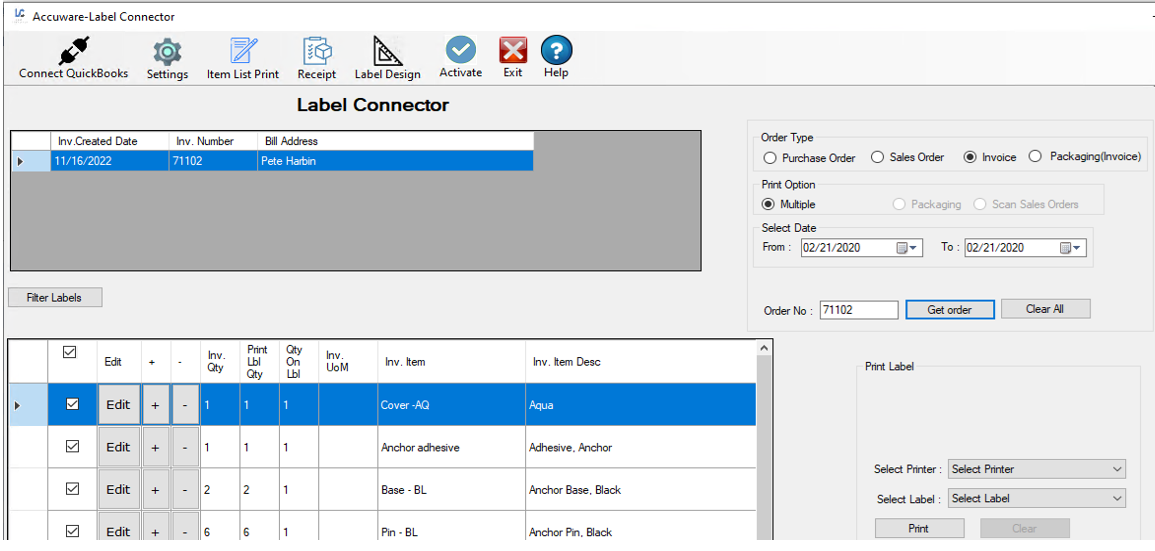
QuickBooks Desktop falls short on label printing
- Print only one item or all items — no range or custom selection
- Very limited field options available on the label
- Restricted to a small preset list of label sizes — no 4×6 support
- No label designer — you get what you get
- Limited Avery sheet sizes available
- No support for custom item fields or dynamic data
- Print any selection of items — full range and filter support
- Access all QuickBooks data fields, including custom item fields
- Any label size supported — including the standard 4×6
- Full drag-and-drop label designer built in
- Unlimited label templates — no restrictions
- Supports invoices, sales orders, and multiple print workflows
Everything you need for serious label operations
Full label designer
Place text, barcodes, logos, and lines anywhere on your label. Use word wrapping, static text, and precise layout controls to build the exact label you need.
Rich data sources
Pull from all QuickBooks item fields, including custom fields. Supports item lists, invoices, sales orders, and more — giving you real flexibility for detailed labels.
Unlimited templates
Create and save as many label templates as your operation requires. Switch between designs instantly from the print interface — no limits, no extra cost.
Flexible print control
Choose specific items, set quantities, and use prompted fields for last-minute values like serial numbers or bin locations — perfect for warehouse and retail environments.
Comprehensive item search
Search and filter items the same way you would in QuickBooks' own item list screen — making it fast and familiar to find exactly what you need to print.
Multi-printer support
Connect to any number of printers — including Zebra roll-label printers — and select the right device for each job directly from the print interface.
Labels for every industry and use case
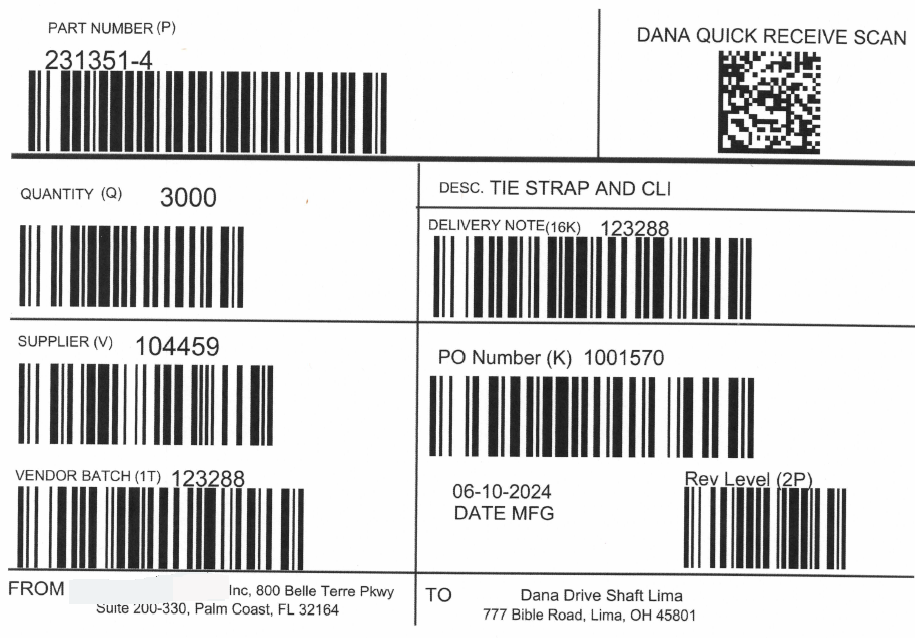
AIAG labels
Automotive industry standard labels built from your QuickBooks invoice data.
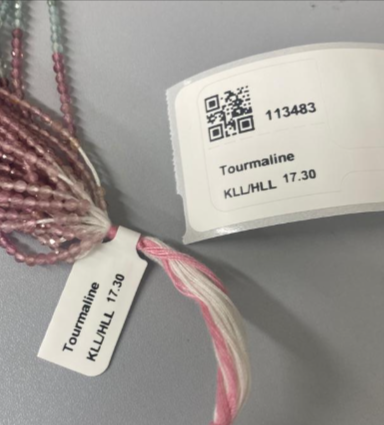
Jewelry labels and tags
Print butterfly labels, hang tags, or small wrap-around labels for jewelry items.
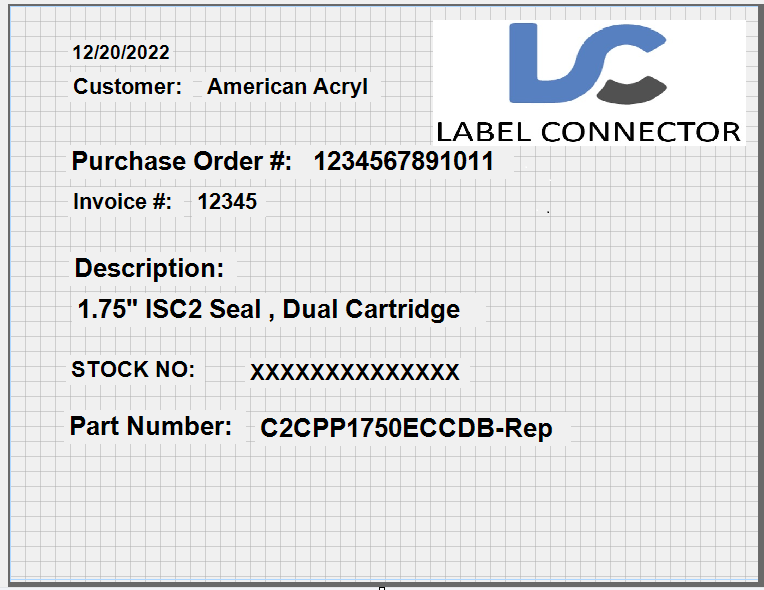
Order related labels
Create labels to identify and track inbound and outbound materials from orders.
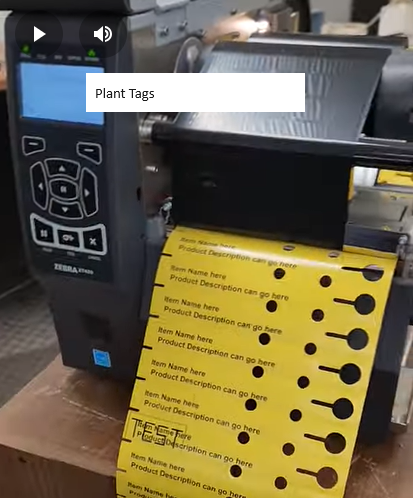
Horticulture tags
Print plant wrap-around poly tags and plant stakes with waterproof adhesive labels.
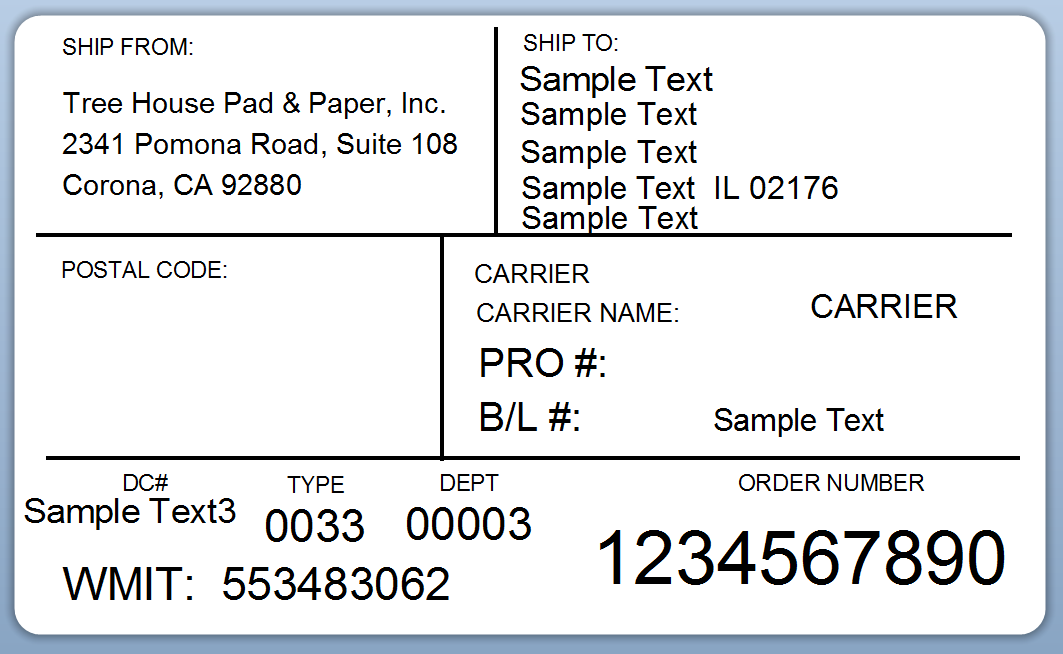
Complex shipping labels
Design 4×6 labels with customer address and order information from your invoices.
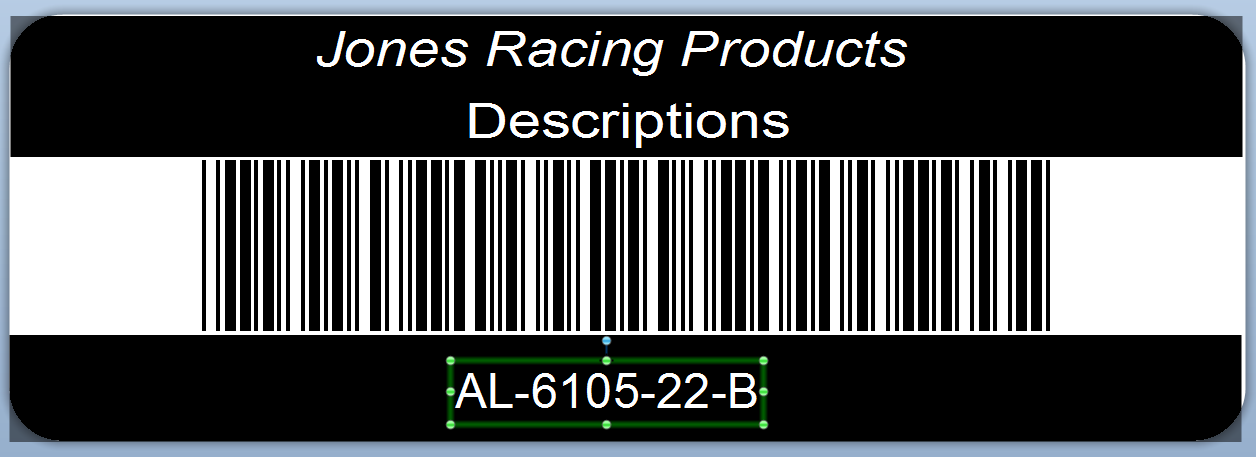
Basic product labels
Pull in QuickBooks item name, description, and barcode for clean product identification.
From QuickBooks data to printed label in four steps
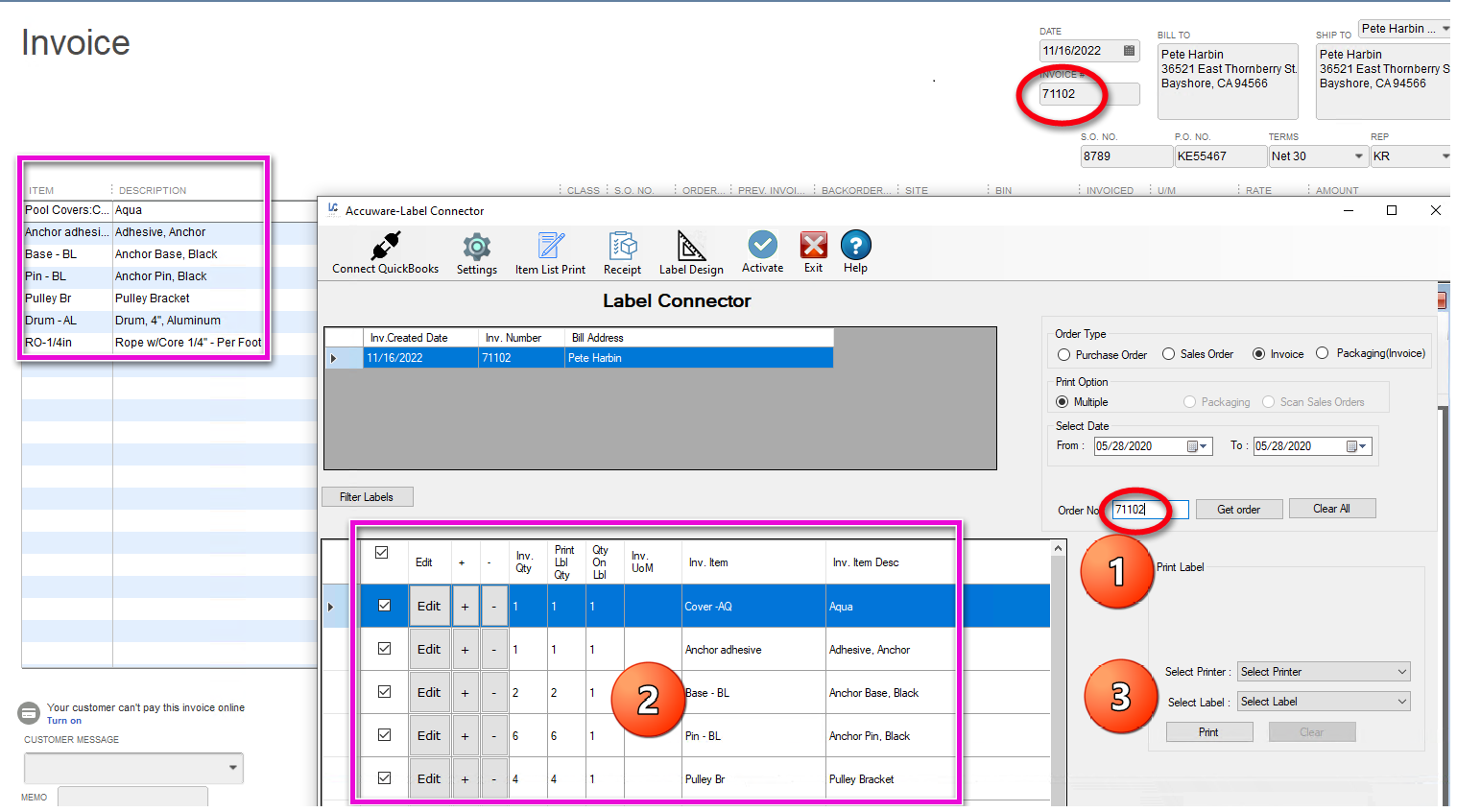
Print directly from orders
Use invoices, sales orders, purchase orders, inventory receipts, or sales receipts as the source for your labels. Enter the order number, pull it up in Label Connector, select your printer and template, and press print — no re-typing required.
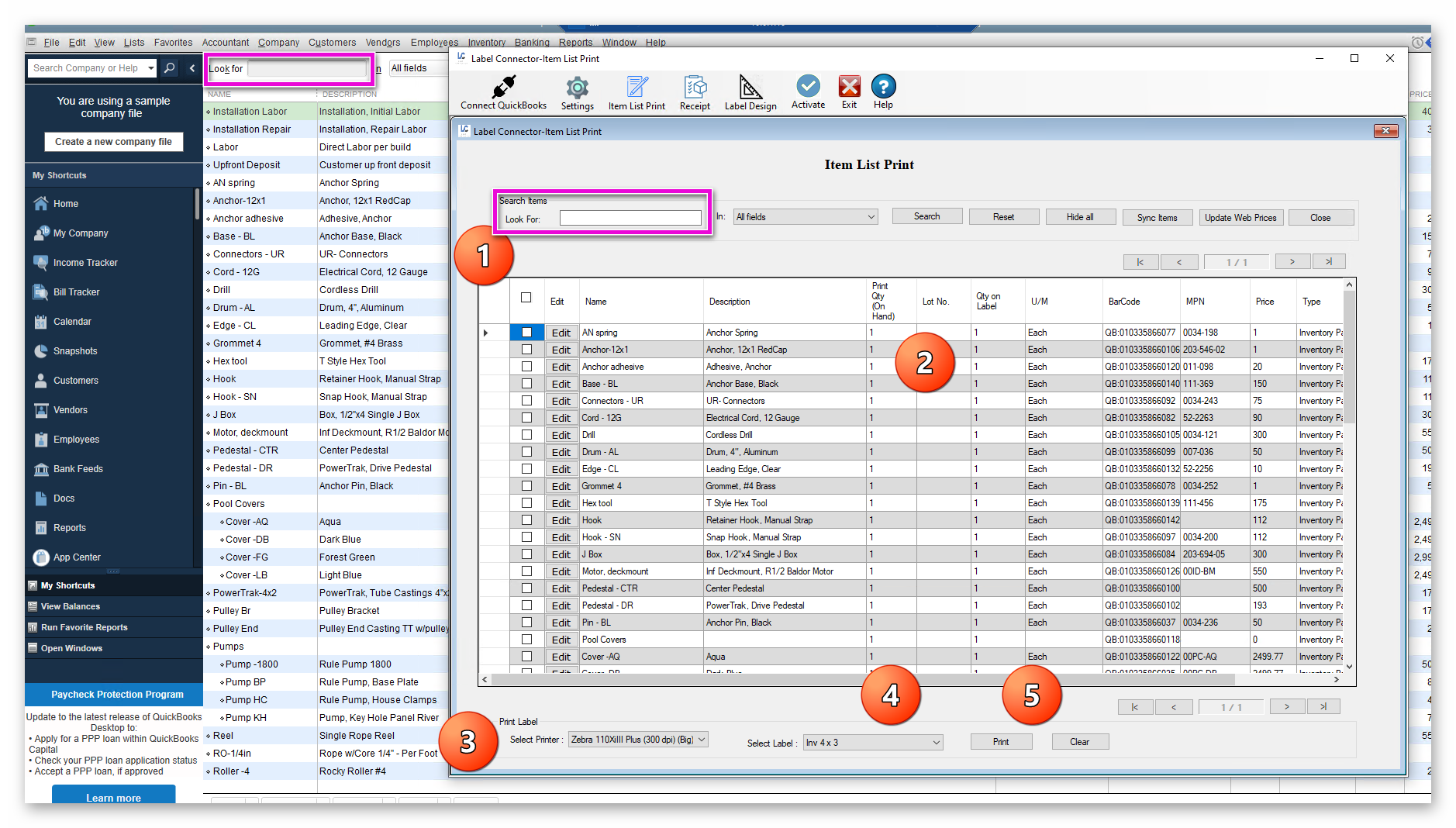
Print from your items list
Search and filter your QuickBooks item list using the same methods you already know. Display results, enter quantities, select your printer and template, and print — all with access to custom item fields.
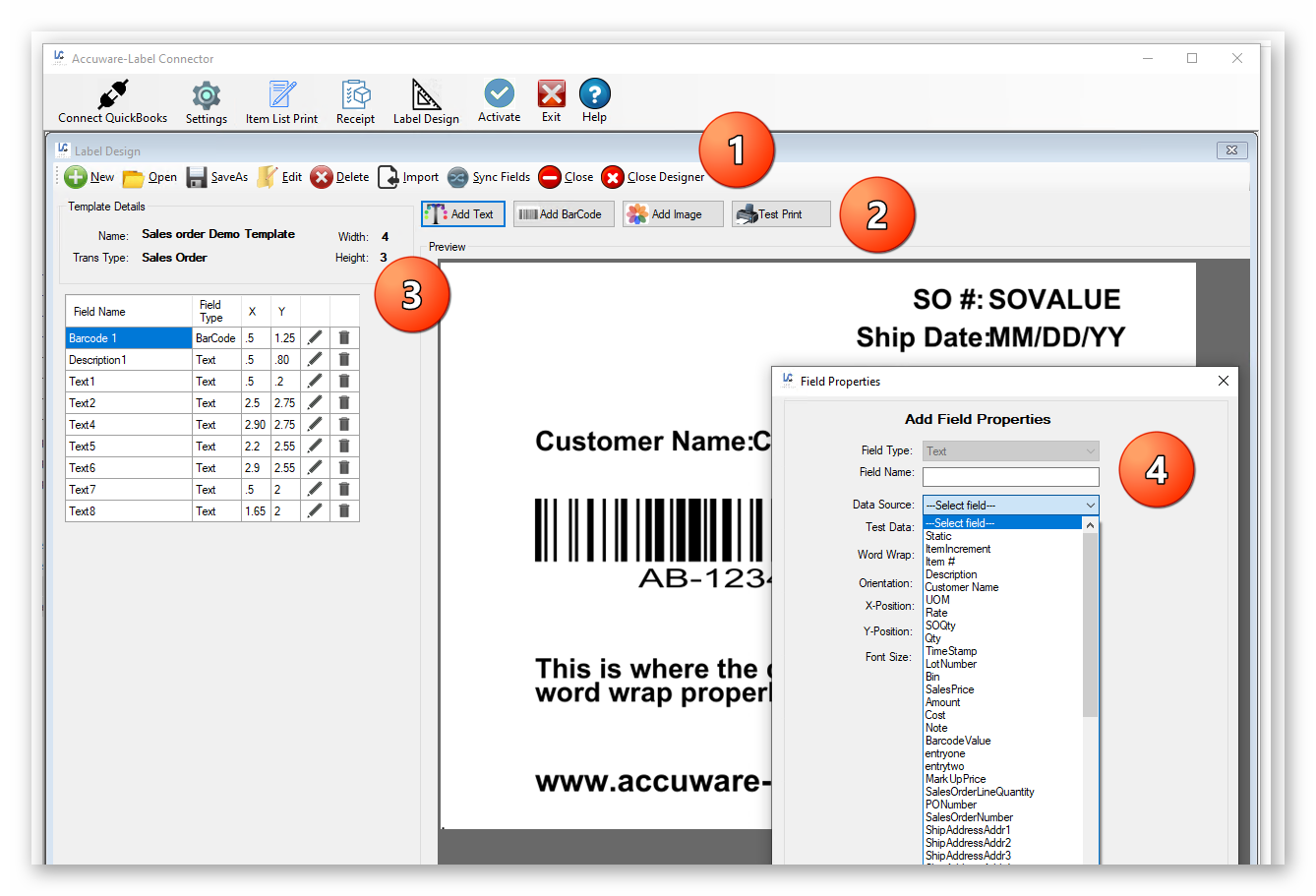
Design labels your way
Build unlimited label templates with the built-in designer. Add text, barcodes, and images. Link to a comprehensive list of QuickBooks data elements. Test print directly from the designer — no restrictions on size, layout, or number of templates.
Ready to take control of your label printing?
Label Connector by Accuware integrates directly with QuickBooks Enterprise — no complex setup required.